Backup & Disaster Recovery Strategy. Your hard drive fails catastrophically. Ransomware encrypts all your files. A disgruntled employee sabotages your systems. A natural disaster destroys your office. A cyber attack steals and deletes months of critical work. In any of these scenarios, one thing separates recovery from permanent loss: backups. Yet most individuals and many organizations don’t have reliable backups. When disaster strikes, they face impossible choices: pay ransom demands, lose their data forever, or spend weeks or months attempting recovery with incomplete tools. This guide teaches you how to build a backup strategy that protects you from any disaster.
Backup & Disaster Recovery Strategy, why Backups Are Your Most Critical Defense
Backups are fundamentally different from other security measures. Firewalls, antivirus software, and multi-factor authentication all work to prevent attacks. Backups assume the attack will succeed anyway and prepare for recovery. This mindset shift is crucial. The best security practices can prevent most attacks, but no defense is perfect. Ransomware will sometimes get through. Data theft will sometimes happen. The question isn’t whether your systems might be compromised—it’s whether you can recover when they are.
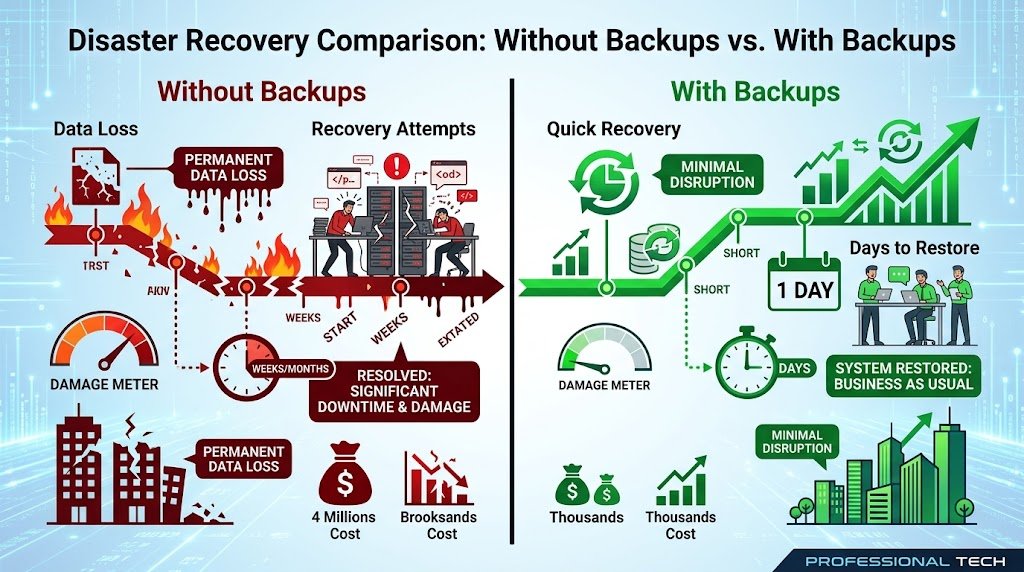
The statistics reveal the importance of backups. Organizations with recent backups recover from ransomware attacks in days. Organizations without backups spend months attempting recovery or face permanent data loss. The average ransom demand is $50,000 to $500,000. Yet recovery from a clean backup costs far less—perhaps just the time spent restoring systems. Even a basic backup strategy pays for itself in a single ransomware incident.
Backups also protect against non-malicious disasters. Hardware fails. Accidental deletion happens. Employees make mistakes. Natural disasters destroy physical infrastructure. Software corruption loses data. Backups address all of these risks equally. A comprehensive disaster recovery strategy isn’t just about cybersecurity. It’s about resilience.
The psychological value is significant too. When you know you have reliable backups, you can respond to attacks rationally rather than panic. You don’t face pressure to pay ransom. You don’t have to accept permanent data loss. You can take time to investigate what happened, report to authorities, and recover properly. Backups transform catastrophes into recoverable incidents.
Understanding Backup Types: The Foundation
Before building a strategy, you need to understand the options. Different backup types serve different purposes, and an effective strategy combines multiple types.
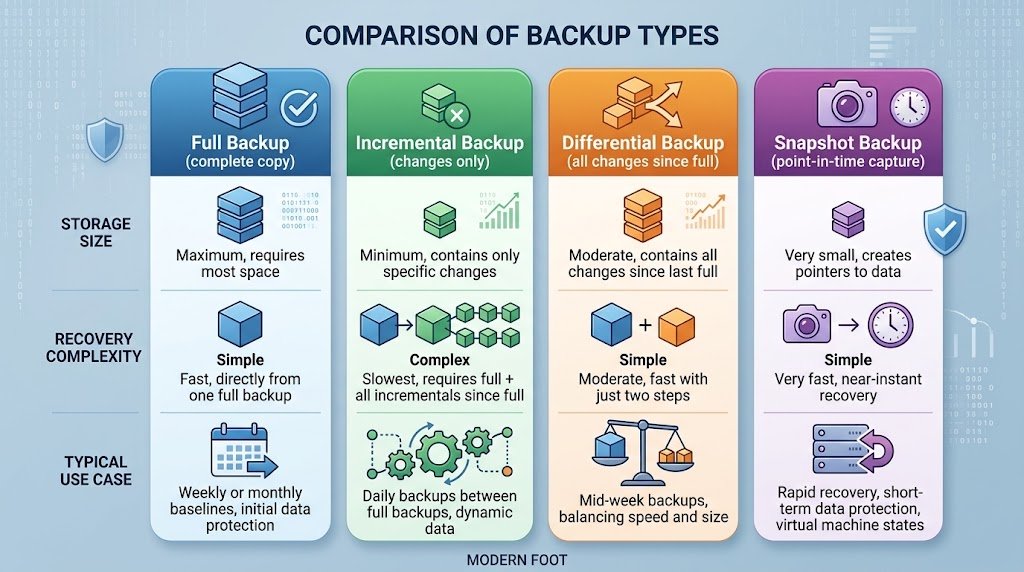
Full backups copy everything—every file, every database, every system setting. A full backup is comprehensive but large. On a personal computer, a full backup might be hundreds of gigabytes. On a business server, it might be terabytes. Full backups take time to create and consume significant storage. Most people can’t do full backups daily. They do full backups weekly or monthly.
Incremental backups only copy changes since the last backup. If your full backup was Sunday and today is Thursday, Thursday’s incremental backup only copies files changed since Sunday. Incremental backups are small and fast, so you can do them daily or hourly. But recovery requires all incremental backups since the last full backup. If any incremental backup is corrupted, recovery becomes complicated.
Differential backups copy all changes since the last full backup, regardless of how many differential backups happened in between. Thursday’s differential backup contains all changes since Sunday’s full backup, even if you did differential backups Monday, Tuesday, and Wednesday. Differential backups are larger than incrementals but easier to recover from. You only need the most recent differential plus the original full backup.
Snapshot backups capture the exact state of a system at a specific moment, like taking a photograph. Snapshots are fast and efficient, especially for databases and virtual machines. They’re excellent for quick recovery to a known-good state. But snapshots don’t backup data outside the snapshot—they capture current state only.
Understanding these types lets you choose appropriate combinations. A common approach: do a full backup weekly, incremental backups daily. Or: full backup monthly, differential backups weekly, incremental backups daily. The appropriate choice depends on your data volume and how quickly you need to recover.
The 3-2-1 Backup Rule: The Industry Standard
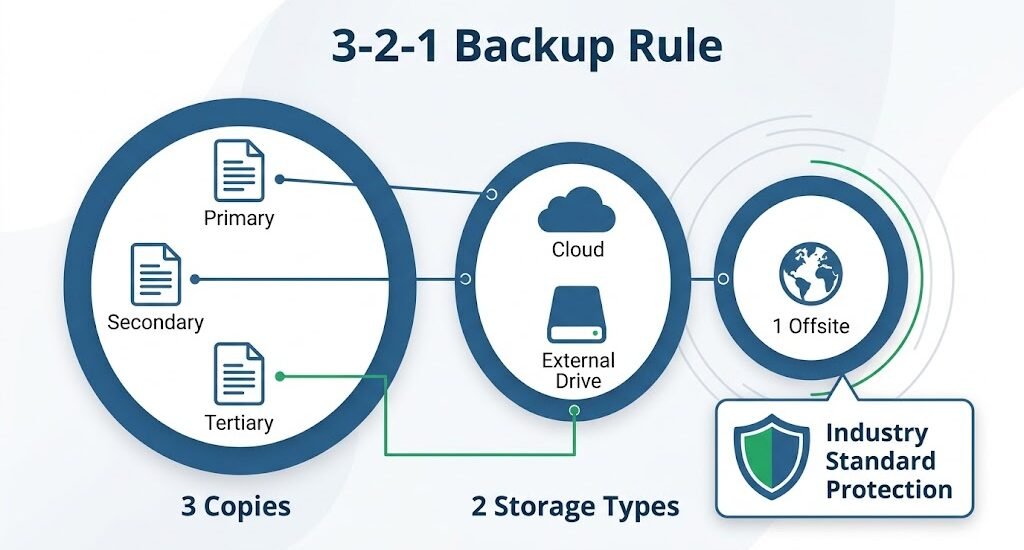
Cybersecurity professionals universally recommend the 3-2-1 backup rule. This rule represents the minimum viable backup strategy that protects against most disasters.
The rule states: keep at least 3 copies of your data. One copy is your primary system where you work daily. The second and third copies are backups. Having multiple copies means if one fails, others still protect you. If your primary system is compromised, your backups are still safe. If one backup is corrupted, other backups are intact.
Keep those copies on at least 2 different storage types. For example: one copy on your computer’s hard drive, one on an external drive, one in cloud storage. Different storage types fail differently. A hard drive might fail mechanically. Cloud storage might be hacked. An external drive might be stolen. Using multiple storage types means one type of failure won’t destroy all copies.
Keep at least 1 copy offsite. This addresses geographic disasters. If a fire destroys your office, onsite backups are useless. Offsite copies protect against fire, floods, theft, and other physical disasters. Cloud storage is the easiest offsite solution for most people. For organizations, offsite could mean a backup data center or cloud provider.
The 3-2-1 rule is elegantly simple yet remarkably protective. Most people who follow it never experience permanent data loss. Most people who ignore it eventually regret it.
Building Your Backup Strategy: Practical Implementation
A backup strategy has several components.
First, identify what data matters. You don’t need to backup your operating system—you can reinstall that. You need to backup your documents, photos, emails, financial records, and other data you created. This is called “incremental value” data—the data that makes your system valuable.
Second, choose your backup methods. For individuals, cloud backup services like Backblaze, Carbonite, or iCloud provide simple, automatic solutions. You install software, it automatically backs up your important files, and recovery is straightforward. For more control, external drives and Network Attached Storage (NAS) devices let you manage backups yourself. For organizations, dedicated backup software like Veeam or Acronis provides sophisticated options.
Third, establish your backup frequency. How often can you afford to lose data? If you work with critical documents daily, daily backups make sense. If your data changes weekly, weekly backups are sufficient. Most people find weekly full backups plus daily incremental backups reasonable.
Fourth, test your backups. This step is crucial and often skipped. A backup that’s never been tested might not work when you need it. Test recovery procedures quarterly. Restore a file to verify it works. Confirm recovery takes reasonable time. Document recovery procedures so you can execute them quickly in emergencies.
Fifth, document everything. Write down where backups are stored, what software you use, recovery procedures, and backup schedules. When disaster strikes, you need to recover quickly. Documentation ensures recovery isn’t dependent on anyone’s memory.
Local Backups: External Drives and Network Storage
External drives are the simplest local backup option. Buy a drive with capacity equal to or larger than your computer’s storage. Connect it regularly and back up everything. An external drive costs $50 to $200 and protects against drive failure, accidental deletion, and malware.
The limitation is that external drives stored at the same location as your computer aren’t protected against physical disasters. If fire destroys your office, your external drive might burn too. And external drives stored locally might be encrypted by ransomware if your computer is compromised. The backup drive needs to be disconnected from your computer most of the time. Connect it only during backups, then disconnect and store it safely.
Network Attached Storage (NAS) devices are personal data centers. They’re computers with large storage capacity designed primarily for backups. You connect a NAS to your network and back up computers to it. NAS devices cost $200 to $1000 plus storage drives. They protect your data with redundancy—losing one drive doesn’t mean losing all data. They’re excellent for families or small businesses with multiple computers needing backup.
Like external drives, NAS devices have limitations. They don’t protect against geographic disasters. And if a computer is compromised, ransomware might spread to the NAS if it’s continuously connected. Advanced users configure NAS devices to be accessible only during scheduled backups, or even through isolated network segments.
Cloud Backups: The Offsite Solution
Cloud backup services like Backblaze, Carbonite, Crashplan, or Google One offer automatic, offsite protection. You install software, select folders to backup, and the service continuously uploads changes to cloud servers. If your computer fails, you download everything from the cloud. If ransomware encrypts your files, your cloud backups remain unaffected.
Cloud backups address the geographic disaster problem. Your data lives in data centers hundreds or thousands of miles away. Fire, floods, theft—none affect cloud backups. For most individuals, cloud backup is sufficient.
The trade-offs are bandwidth and privacy. Initial backup of large amounts of data can take weeks using residential internet. Ongoing backups happen continuously but might slow your internet. And your data lives on someone else’s servers. You must trust the provider’s security and encryption. Most reputable providers use strong encryption where only you hold the encryption key—the provider can’t access your data even if compromised.
Cost varies. Basic cloud backup typically costs $6 to $12 per month for unlimited data. Some providers charge per device. Some offer family plans covering multiple computers. Over a year, unlimited cloud backup costs less than buying an external drive.
The Complete Strategy: Combining Methods
The strongest approach combines multiple backup methods. Here’s a practical strategy most people can implement:
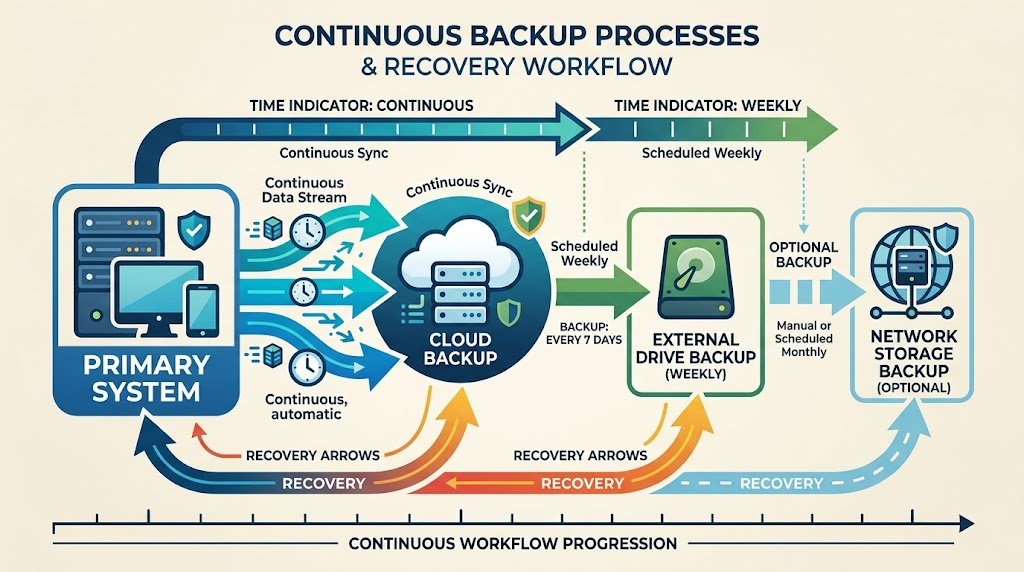
Primary backup: Cloud service like Backblaze running continuously. This protects against ransomware, device failure, and disaster. If your computer dies tomorrow, you recover from the cloud.
Secondary backup: Weekly full backup to an external drive. Store the drive offsite—at a friend’s house, in a safe deposit box, or at a secondary office. This protects against cloud provider failure (extremely rare) and provides fast local recovery without depending on internet bandwidth.
Tertiary backup: Monthly snapshot backup if you work with critical data. For example, monthly backup of financial records or project files to yet another external drive stored in a different location.
This strategy implements 3-2-1: three copies (primary, secondary, tertiary), two storage types (cloud and local drives), one offsite (secondary drive plus inherent offsite nature of cloud). The cost is modest—maybe $100 per year for cloud service plus $100 one-time for external drives. The protection is comprehensive.
For organizations, this gets more sophisticated. Multiple data centers, replicated databases, failover systems—organizations protect critical data with redundancy at every level. But even organizations should start with 3-2-1.
Disaster Recovery: The Bigger Picture
Backups are part of disaster recovery, but not the whole picture. Disaster recovery planning addresses how you resume operations after disaster. It’s not just about restoring data—it’s about restoring your ability to work.
A backup has your data, but what if your computer is destroyed? You need to know how quickly you can acquire replacement hardware and restore from backup. You need to know if you have recovery media to restore your operating system. You need to know if any software licenses require reactivation after moving to new hardware.
For critical systems, organizations develop elaborate disaster recovery plans: backup data centers, failover procedures, alternative communication systems. For individuals, it’s simpler: know where your backups are and how to restore them. Test recovery quarterly.
Ransomware and Backups: The Critical Connection
Ransomware is why backups matter most. When ransomware encrypts your files and demands payment, you have clear options if you have backups: restore from backup, paying nothing. If you don’t have backups, you face terrible choices: pay extortion, lose data, or attempt recovery with specialized tools that might not work.
But here’s the danger: sophisticated ransomware targets backups too. Attackers know that backups are your recovery path. They look for backup systems and attempt to delete or encrypt them before deploying ransomware on primary systems. This is why offline backups matter. A backup disconnected from the network can’t be reached by ransomware. Backups stored in the cloud with separate authentication can’t be deleted by compromised local systems.
This also explains why backup security matters. If an attacker gains access to your cloud account, they might delete backups. Using strong, unique passwords and multi-factor authentication on backup services is essential. Some experts recommend separate cloud accounts for backups with different credentials than primary accounts.
Testing and Maintenance: The Often-Forgotten Steps
Creating backups is only half the battle. You must verify they work. A backup that’s never been tested might fail exactly when you need it. Test procedures quarterly: restore a random file to a different location, verify it’s intact, confirm recovery time. Document what you learn.
Maintenance involves several practices.
First, verify backups are actually happening. If your automatic backup failed, you might not realize until disaster strikes. Check backup logs monthly. Cloud services typically show last backup time. External drives should show recent modification dates.
Second, verify backup media is healthy. External drives can fail. Cloud providers rarely lose data, but it’s possible. Having multiple backup copies means one failure doesn’t mean total loss. This is why 3-2-1 isn’t overkill—it’s necessary redundancy.
Third, update your backup strategy as your data changes. When you acquire new devices, add them to your backup system. When data storage grows beyond backup capacity, upgrade. When you discover irreplaceable data you weren’t backing up, add it.
Fourth, rotate backups. Some organizations keep monthly backups going back years. This protects against ransomware that slowly spreads—if ransomware is present for months before being detected, recent backups might be infected too. Keeping older backups helps.
Connected to Other Security Measures
Backups work best combined with other defenses. Strong passwords, multi-factor authentication, software updates, and employee training reduce the chance disaster occurs. But backups ensure you recover if disaster does occur.
For ransomware specifically, backups eliminate the attacker’s leverage. Ransom demands become meaningless if you can recover for free. This is why backups are the most effective ransomware defense. Not preventing infection (which is important but difficult), but ensuring recovery regardless.
For other disasters—hardware failure, accidental deletion, software corruption—backups are the only defense that matters. Firewalls don’t help if your hard drive fails. Antivirus doesn’t recover deleted files. Only backups restore your data.
FAQ: Backup Strategy Questions
Q: How much data should I backup?
A: Backup everything you’d regret losing. This typically includes documents, photos, emails, financial records, and projects. Don’t backup your operating system—you can reinstall that. Don’t backup application installers—you can redownload those. Do backup everything you created.
Q: Is cloud backup secure?
A: Reputable cloud backup services use military-grade encryption. Your data is encrypted before leaving your computer—even the provider can’t read it. Choose providers with strong privacy policies and consider providers based in countries with strong privacy laws. Avoid free backup services that sell access to your data.
Q: How often should I test backups?
A: At least quarterly. For critical systems, monthly testing is better. Testing should include restoring random files and verifying recovery time. Document procedures so recovery is straightforward when needed.
Q: What if my backup is compromised?
A: This is rare but theoretically possible. Multi-factor authentication on backup accounts prevents account takeover. Separate credentials for backup accounts reduce risk. Having multiple backups means one compromise doesn’t mean losing all copies. The 3-2-1 rule protects against this.
Q: Can I rely solely on cloud backup?
A: Cloud backup is excellent for offsite protection and continuous availability. But relying on a single backup location creates risk. The 3-2-1 rule’s multiple copies and storage types provide protection cloud backup alone doesn’t offer. Combine cloud backup with local backups for comprehensive protection.
Q: Should I backup to the same device I’m backing up from?
A: No. A backup stored on your computer doesn’t protect you if your computer is destroyed or compromised. External drives should be disconnected most of the time. Cloud backup is automatically offsite. The 3-2-1 rule ensures protection from multiple failure modes.
Conclusion: Backups Are Non-Negotiable
In a world of increasing digital threats and technical failures, backups are your safety net. They’re not optional extras or things to implement later. They’re fundamental infrastructure. You wouldn’t operate a business without fire insurance or liability insurance. Similarly, you can’t responsibly work with important data without backups.
The 3-2-1 rule provides a framework any individual or organization can implement. Three copies on two storage types with one offsite. The cost is modest. The protection is comprehensive. The only barrier is action—actually implementing the strategy rather than intending to eventually.
The organizations that suffer permanent data loss from ransomware, hard drive failure, or disasters typically weren’t technically breached—they simply never implemented backups. These catastrophes are almost entirely preventable. Build your backup strategy today. Test it quarterly. When disaster inevitably strikes, you’ll recover rather than despair.
External links for more information:
External links for more information:
Find more Cyber Security articles or contact us to learn how to better protect yourself, your business, and your digital environment from modern cyber threats. Also, explore How attackers bypass MFA to commit CEO fraud
This article is published exclusively for informational and educational purposes. Its goal is to enhance cybersecurity awareness, inform users, and help prevent modern digital threats.The information presented is not intended for malicious use or to promote illegal activities.